Tray
oatbar supports modern System Trays via the standard Status Notifier Item (SNI) protocol. Because it is built on SNI, trays work seamlessly across both X11 and Wayland environments.

Legacy xembed support:
oatbardoes not support the older X11xembedtray protocol. If you use legacy applications that requirexembed, run the third-partyxembedsniproxydaemon to bridge them to the SNI protocol.
How it Works
Unlike traditional desktop bars, oatbar doesn’t have a hardcoded “system tray area”. Trays are treated identically to regular blocks and variables.
When a tray application launches, the oatbar-sni protocol server extracts its pixel buffers and actions into standard variables. This gives you full control:
- Place trays anywhere: Insert tray icons individually anywhere in your layout.
- Split them up: Move different trays to completely different blocks or bars.
- Filter by monitor: Conditionally show specific apps only on certain monitors.
- Custom icons & text: Ignore the app’s native
pixmapand substitute your own images, font icons, or text. - Programmatic menu actions: Create dedicated buttons that click specific context menu items by name — no interactive menu needed.
Configuration Guide
1. Enable the SNI Protocol Server
Add the oatbar-sni command to your ~/.config/oatbar/config.toml:
[[command]]
name="sni"
command="oatbar-sni"
2. Discover Tray App IDs
Each tray block maps to one application. You need to find the identifier that the app registers under.
Launch the application you want to configure (e.g., vlc), then query the active variables:
oatctl var ls | grep sni | grep visible
You should see output like:
sni.vlc.visible
sni.Pidgin.visible
sni.chrome_status_icon_1.visible
sni.nm-tray.visible
The string after sni. is the app identifier (e.g., vlc, Pidgin). Note that some apps like Chrome use dynamic identifiers such as chrome_status_icon_1.
3. Add a Tray Block
Create an Image block binding to the app’s variables. Hook all on_mouse_* events to oatbar-sni activate to forward clicks to the tray application:
[[block]]
name="tray_vlc"
type="image"
pixmap="${sni:sni.vlc.pixmap}"
show_if_matches=[['${sni:sni.vlc.visible}', '1']]
max_image_height=20
on_mouse_left="oatbar-sni activate ${sni:sni.vlc.dbus} left $ABS_X $ABS_Y"
on_mouse_middle="oatbar-sni activate ${sni:sni.vlc.dbus} middle $ABS_X $ABS_Y"
on_mouse_right="oatbar-sni activate ${sni:sni.vlc.dbus} right $ABS_X $ABS_Y"
Then add your tray blocks to the bar layout:
[[bar]]
blocks_right=["L", "tray_vlc", "clock_pill", "R"]
Repeat for every tray app you use, replacing the identifier from step 2.
Recipes
oatbardoesn’t treat tray blocks specially — they are regular blocks. Any property can be omitted, overridden, or replaced with your own values.
Replace Tray Icon with Custom Text
Since a tray block is just a block, you can use type="text" instead of type="image" and ignore the pixmap entirely. Only the visible variable and click handlers reference SNI:
[[block]]
name="tray_vlc"
type="text"
value="<span foreground='#89b4fa'>🎵 VLC</span>"
show_if_matches=[['${sni:sni.vlc.visible}', '1']]
on_mouse_left="oatbar-sni activate ${sni:sni.vlc.dbus} left $ABS_X $ABS_Y"
on_mouse_right="oatbar-sni activate ${sni:sni.vlc.dbus} right $ABS_X $ABS_Y"
Replace Tray Icon with a Custom Image
Use a static image file instead of the app-provided pixmap:
[[block]]
name="tray_discord"
type="image"
value="/home/user/.config/oatbar/icons/discord.png"
show_if_matches=[['${sni:sni.chrome_status_icon_1.visible}', '1']]
max_image_height=20
on_mouse_left="oatbar-sni activate ${sni:sni.chrome_status_icon_1.dbus} left $ABS_X $ABS_Y"
Split Trays Across Different Bars
Place specific trays on different bars or monitors. Each tray block is independent:
# Primary monitor bar
[[bar]]
monitor="eDP-1"
blocks_right=["L", "tray_vlc", "tray_pidgin", "clock_pill", "R"]

# External monitor bar — only show network manager
[[bar]]
monitor="HDMI-A-1"
blocks_right=["L", "tray_nm", "clock_pill", "R"]
Customizing Context Menus
Some tray applications export their right-click context menus over DBus, relying on the bar to display them.
oatbar defaults to rendering these menus using rofi. Delegating to external search launchers like this provides a unique advantage: you can instantly use your keyboard to search, filter, and select through complex nested tray menus.
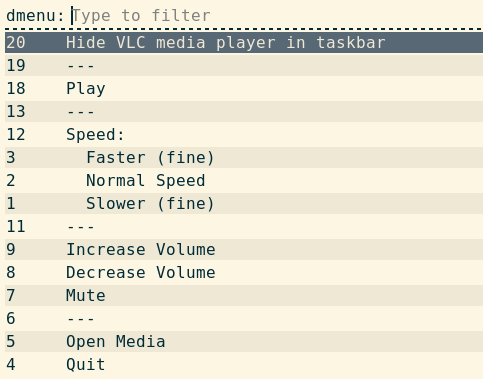
You can replace the default with any dmenu-compatible tool via ~/.config/oatbar/sni.toml:
Wayland (Wofi)
# ~/.config/oatbar/sni.toml
dbusmenu_display_cmd = "wofi --dmenu"
X11 (dmenu)
# ~/.config/oatbar/sni.toml
dbusmenu_display_cmd = "dmenu -l 100"
Blocks to click menu items
Since oatbar-sni can click menu items directly via dbusmenu item-click, you can create dedicated bar buttons that trigger specific menu actions — no right-click menu needed. This works for applications that export their menus over the DBusMenu protocol.
For example, create a “Mute” button that only appears when VLC is running:
[[block]]
name="vlc_mute"
type="text"
value="🔇 Mute"
show_if_matches=[['${sni:sni.vlc.visible}', '1']]
on_mouse_left="oatbar-sni dbusmenu item-click ${sni:sni.vlc.dbus} --regex 'Mute'"
This is a regular text block that:
- Uses
sni.vlc.visibleto appear only while VLC is running — you don’t even need a separate VLC tray icon block. - Clicks a specific menu item by label regex on left-click, skipping the interactive menu entirely.
Use oatbar-sni dbusmenu print to discover available menu labels:
oatbar-sni dbusmenu print $(oatctl var get sni:sni.vlc.dbus)
See the Reference for full dbusmenu command details.
Keyboard shortcuts for tray menus
Because oatbar exposes variables via oatctl, you can bind keyboard shortcuts in your window manager to interact with tray applications directly. By combining oatctl var get to fetch the dynamic DBus path with oatbar-sni,
and rofi you can invoke menus or click specific items without using the mouse.
Here is an example using i3wm/sway configuration syntax to control VLC:
# ~/.config/i3/config

# Press Super+V to display VLC's right-click context menu (via rofi/dmenu)
bindsym $mod+v exec oatbar-sni activate $(oatctl var get sni:sni.vlc.dbus) right 0 0

# Press Super+M to directly click "Mute" in VLC's context menu, skipping the UI
bindsym $mod+m exec oatbar-sni dbusmenu item-click $(oatctl var get sni:sni.vlc.dbus) --regex 'Mute'
This works identically to the on-click actions in bar blocks, but relies on your window manager for the trigger.